Overview
An overview of an organisation's Lunr usage, including branding, API consumption, licensing, storage, document volumes, and billing-related quotas.
Account Settings
Account Settings provides a statistical overview of an organisation's Lunr footprint. Select Account Settings in the admin main menu to open it. It is the page the admin area opens on by default.
Apart from the organisation logo, this page is read-only. It reports what your organisation is consuming against what it is entitled to, so there are no settings to change here. Each measure is shown as a value against its quota, with a progress bar so you can see at a glance how close you are to a limit. Each usage row only appears if your organisation's subscription includes that resource, so a tenant without a given resource simply does not show its row.
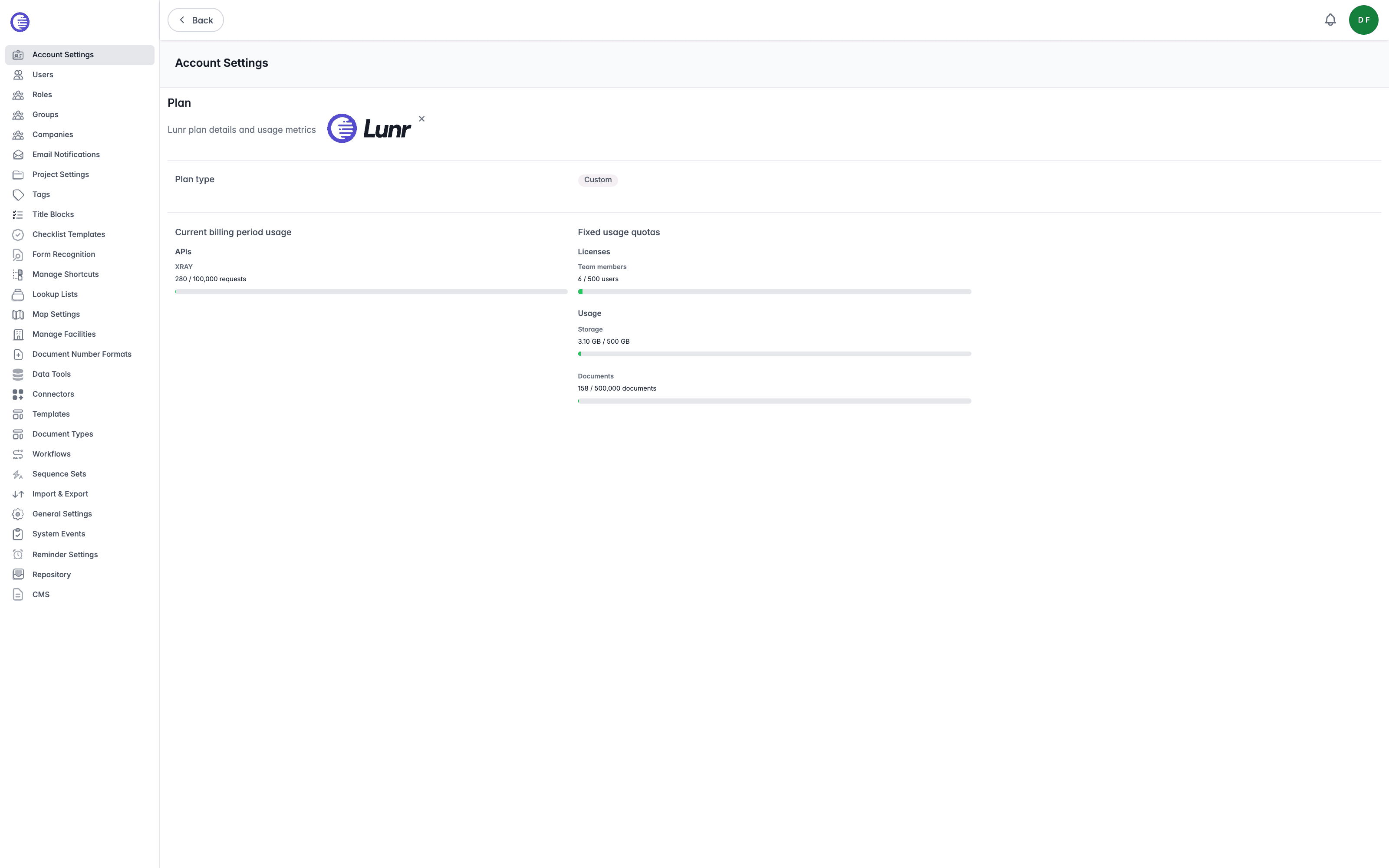
Plan
The Plan section carries the subtitle "Lunr plan details and usage metrics", and shows a single field, Plan type, displayed as a badge. The badge is a fixed display value: it always reads Custom, regardless of your organisation's actual subscription tier, so it is not a live indicator of what plan you are on.
Organisation Logo
The logo control sits beside the plan details.
Select Upload Logo to add your organisation's logo, or drop an image file onto the dashed upload area. Once a logo is set, select the small x beside it to clear the current logo before adding a new one. This logo is displayed for all users at the top of the main menu.
Removing a logo takes effect immediately, with no confirmation prompt.
Current Billing Period Usage
Current billing period usage reports consumption that resets each billing period, rather than a standing total.
APIs
XRAY shows the number of XRAY requests made so far during the current billing period, against the quota included in your plan, expressed as a number of requests.
Fixed Usage Quotas
Fixed usage quotas reports standing totals across the organisation. Unlike the billing period figures, these reflect what your organisation currently holds rather than what it has consumed this period.
Licenses
Team members shows the number of internal users against the number your plan allows.
Usage
Storage shows the storage consumed in gigabytes against your storage quota. Documents shows the number of documents managed against your document quota.
Billing brackets are calculated on the higher of storage used or documents managed.
Lunr Administration
The Administration area is Lunr's central configuration hub, where administrators manage access, document structure, workflows, integrations, and the organisation-wide settings that govern how Lunr behaves.
General Settings
Organisation-wide configuration covering site defaults, content generation, PDF stamping, Change Request import, user management, search, workflow, notification, and document viewer settings.