Form Recognition
Register the models your organisation has trained for form recognition, and map the fields those models read to the tags Lunr should fill.
Overview
Select Form Recognition in the admin main menu. Reaching the page requires the Administration Pages access right, the same as every other page in the admin main menu.
The page has two tabs, Models and Field Mappings.
Form recognition reads fields from an uploaded document using a trained model, then can write what it read into document tags. Two settings on General Settings control whether that happens automatically: Form Recognition enables recognition during content generation, and Write recognised fields to tags decides whether the mappings you set up on this page's Field Mappings tab are then applied. With that second setting disabled, recognition still runs but writes nothing. A project that pins its own model, in its advanced project settings, runs recognition regardless of the organisation-wide Form Recognition toggle.
This page does not train a model. It maintains two organisation-wide lists that recognition depends on: a curated register of models already trained elsewhere, and the field-to-tag mappings applied when a recognised value is written.
Form recognition is metered
Each recognition call counts against your tenant's form recognition quota. Once that quota is exhausted, recognition fails with a resource-unavailable error until the quota resets or is increased, regardless of which project or model triggered the call.
Not the same as title blocks
Title Blocks also populates tags automatically from an uploaded document, but reads a CAD drawing's title block rather than a recognised form field, and uses its own separate mapping. Use Title Blocks for drawings with a title block; use Form Recognition, together with a trained model, for other forms.
Models
Models lists the form recognition models your organisation has trained, so an administrator can choose one in a project's advanced settings.
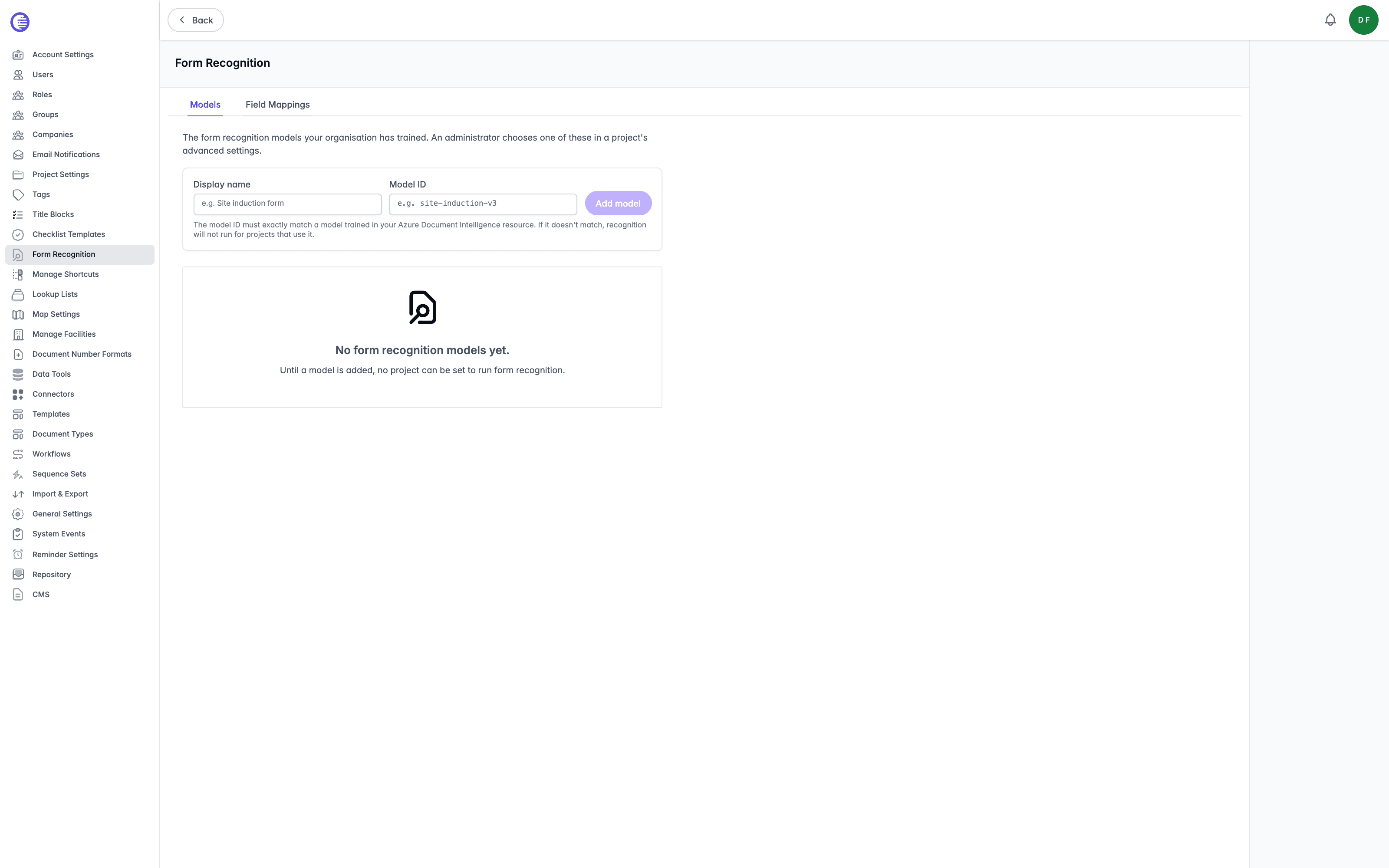
A model itself is trained outside Lunr, in your organisation's Azure Document Intelligence resource (formerly named Form Recognizer). This tab does not create or train one; it only registers a model that already exists there, so a project can select it by a memorable name instead of its raw ID.
To add a model:
- Enter a Display name, for example "Site induction form".
- Enter the Model ID, for example
site-induction-v3. It must exactly match the ID of a model already trained in your Azure Document Intelligence resource; if it doesn't match, recognition never runs for a project that uses it. - Select Add model.
Add model stays disabled until both fields hold a value and the Model ID is not already in the list.
Each row in the table lists the model's Display name and Model ID. Select the remove icon at the end of a row to delete it. A confirmation dialog asks you to confirm before it is removed. Lunr refuses to remove a model that a project still has selected, and asks you to change those projects to another model first, without naming which ones.
Once a model is registered here, an administrator or a user holding the Manage Projects access right can select it from the Form recognition model dropdown in a project's advanced project settings, or leave the project on "Use organisation default". Choosing a model there turns form recognition on for that project even if the organisation-wide Form Recognition setting is off. If a project's dropdown still points to a model whose display name has since been removed from this list, the dropdown keeps showing the raw model ID, marked as no longer in the organisation's list, rather than losing the selection.
Field Mappings
Field Mappings matches a field your models read to the tag it should fill.
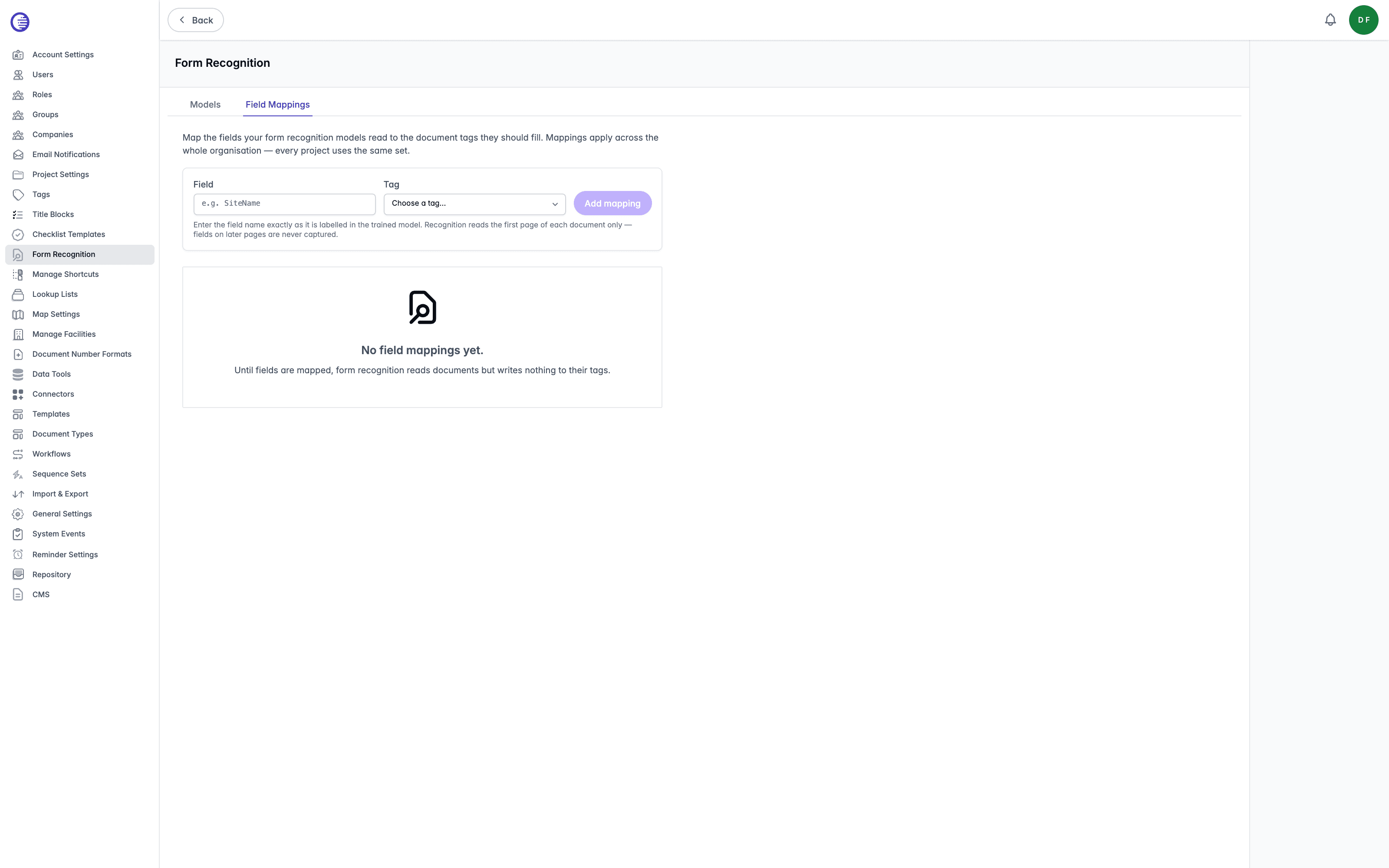
To add a mapping:
- Enter the Field exactly as it is labelled in the trained model, for example
SiteName. - Choose an existing tag from the Tag dropdown. The list is drawn from your organisation's tags, so define the tag first if it doesn't exist yet.
- Select Add mapping.
Mappings apply across the whole organisation. Every project uses the same set, regardless of which model it is pinned to, so a field name has to mean the same thing wherever it appears.
A field is not limited to a single tag, and a tag is not limited to a single field: the same field can map to several tags, and several fields can map to the same tag. Only the combination of a field and a tag has to be unique, so add another mapping if the same field also needs to fill a second tag.
Recognition only reads the first page of a document; a field that appears solely on a later page is never captured, however it is mapped here.
Select the remove icon at the end of a row to delete a mapping. Unlike removing a model, this does not ask for confirmation.
A mapped tag is overwritten, not merged
When recognition runs with Write recognised fields to tags on, a recognised value replaces anything already in its mapped tag, including a value a user entered by hand. Only the tags you have mapped here are touched; every other tag on the document is left alone.
Connectors
Set up external data connections that sync facility hierarchies into Lunr from an uploaded CSV file.
Maps
Lunr's map feature uses document metadata and geospatial data to provide location-based document discovery, while allowing administrators to configure map display settings, default views, and external GIS integrations such as Esri feature services.