Groups
Group users with similar responsibilities, assign the roles that determine what members can do, control which document repositories a group can access, and manage a group's membership and RFI visibility settings in Lunr.
Overview
A group refers to a selection of users with similar roles, such as Approvers, Drafters, or Administrators. A group sourced from your identity provider carries a read-only SSO badge, and its memberships are asserted by your identity provider and restored each time a member signs in.
Groups are the link between people and permissions. A user belongs to one or more groups, and a group is granted one or more Roles, so a user's access rights are the sum of the roles held by their groups.
Managing Groups
The Groups page lists the groups in your organisation. Select Add Group to create a new group.
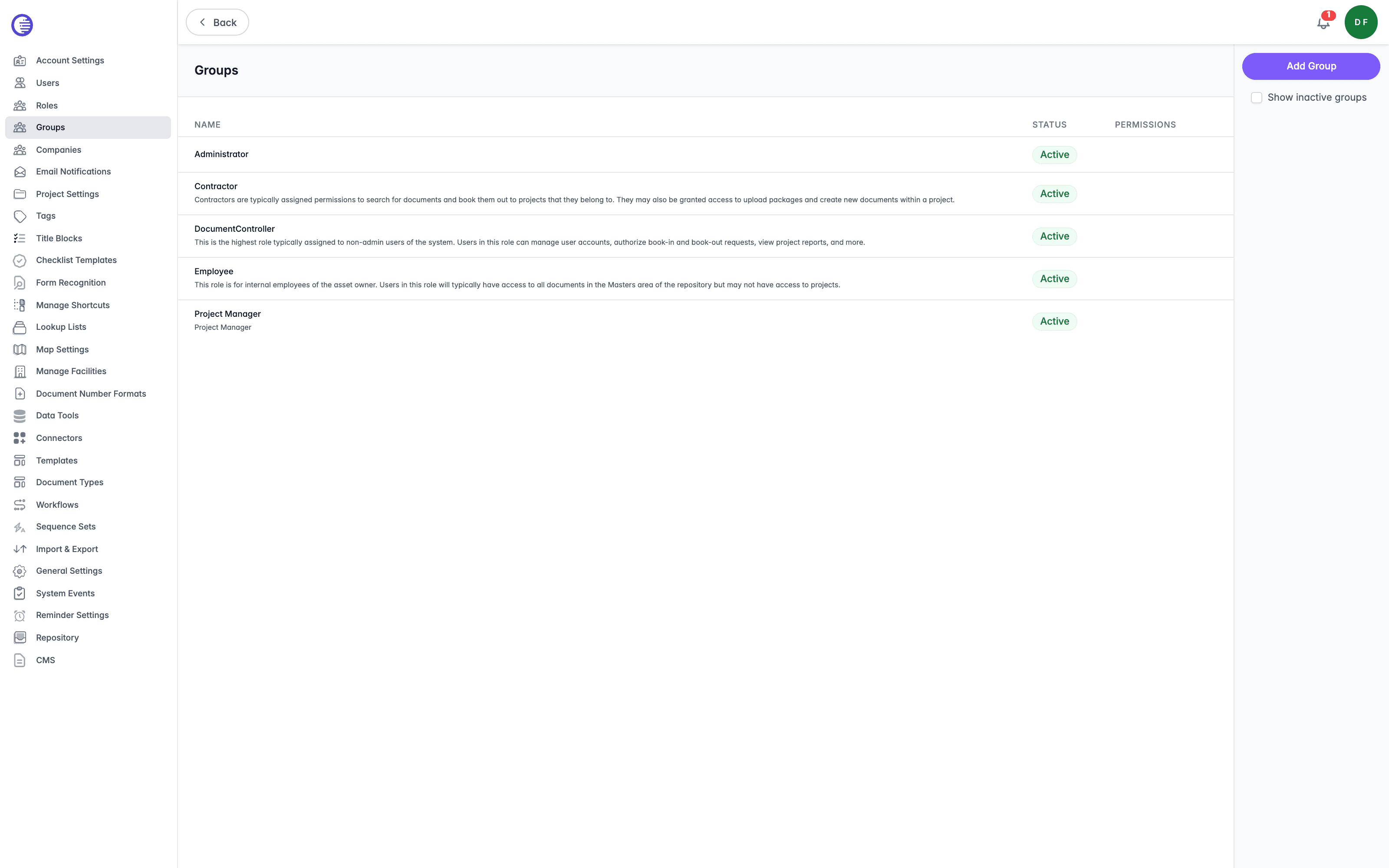
Inactive groups are hidden by default. Select the Show inactive groups box to include them in the list.
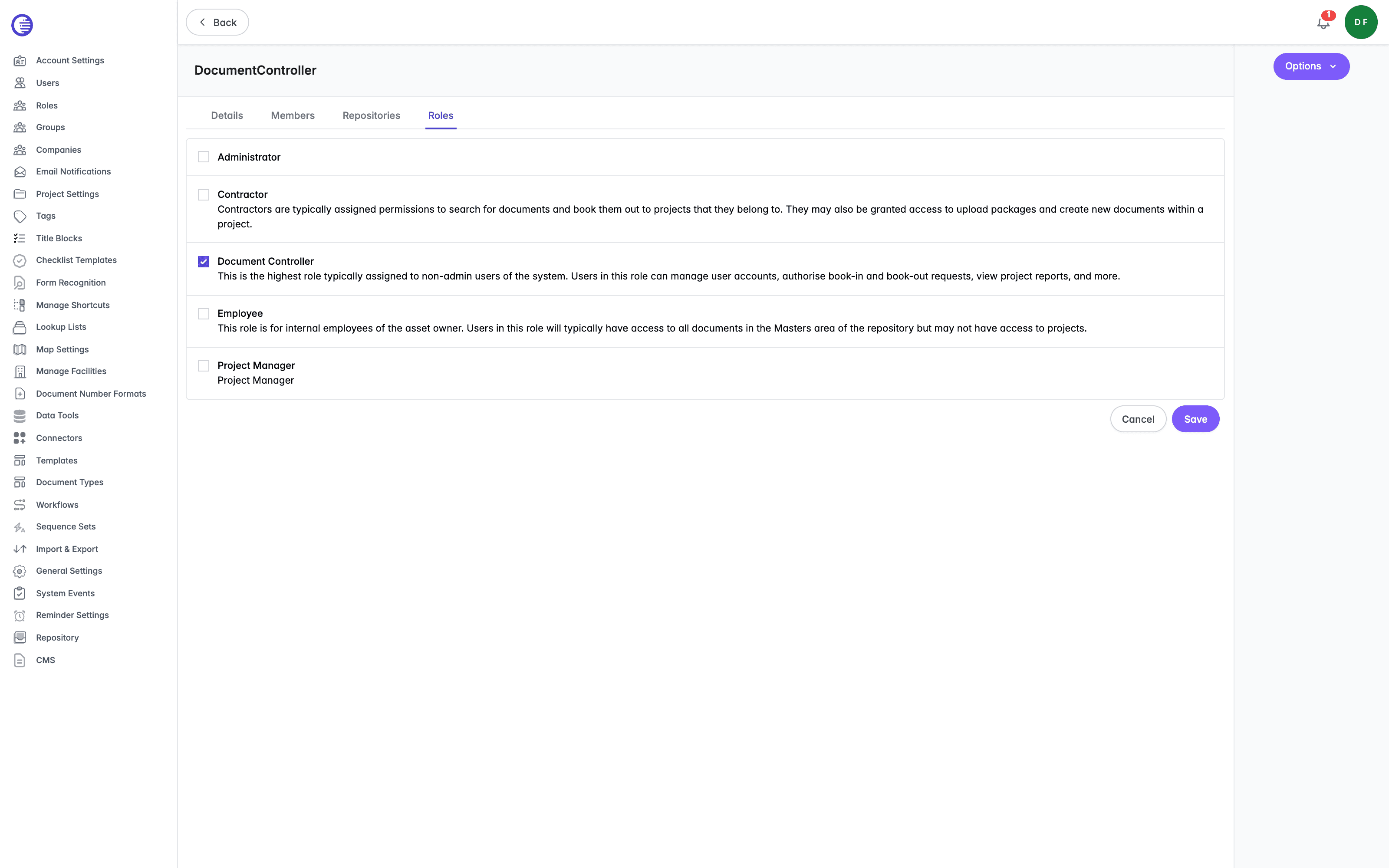
Select a group to open it. A group's page carries four tabs:
| Tab | What it shows |
|---|---|
| Details | The group's name and its own settings. |
| Members | The users who belong to the group. |
| Repositories | The document repositories the group has access to. |
| Roles | The roles granted to the group. Assign a role by selecting the appropriate box. |
Deleting a group has no confirmation prompt
Selecting Delete from a group's Options menu removes the group immediately, with no confirmation dialog.
Group Details
The Details tab holds three settings, all visible only to users holding the Administration Pages access right:
- Active shows whether the group is active and visible to users. Clearing this hides the group without deleting it.
- Allow User Management lets users holding the Manage Users access right add and remove members from this group. For an SSO group, memberships your identity provider asserts are still restored at sign-in regardless of this setting.
- RFI Group shows this group as a recipient option when creating RFIs.
Group Repositories
The Repositories tab lists the document repositories the group can access. If a role granted to the group already grants access to every document repository, an information banner explains that the group has implicit access to all repositories, and the repository checkbox list is not shown.
Users
Manage the people who can sign in to Lunr, invite internal and external users, and control the roles and document permissions each person holds.
Roles
Define the bundles of access rights that determine what users can do in Lunr, assign them to groups, and look up every access right Lunr offers, grouped by the area it governs.